Friday, August 3, 2012

I developed a Toolkit with CITEd which allows educators access to 11 different resources regarding teaching a community of diverse learners (that is, students of varied abilities and backgrounds and students with special needs).  After I populated the list, I removed several so that it would be under a dozen as to not look overwhelming (as the original list of ALL resources looks on CITEd).
Some of the resources are general and cover a wide range of topics or are an introduction to Assistive Technology tools, such as "Getting Started with Assistive Technology" and "A Parent's Guide to Assistive Technology".  Others are very specific and cover a wide range of topics such as autism and science.  "Signing Science" is my favorite.  It's a very brief PDF, but the concept of signing science is pretty interesting, at least if you're already interested in both science and signing, as I am.


Assistive Technology for Educators

Steven Emerson

Software and applications to assist educators with teaching a community of diverse learners.

A Parent’s Guide to Assistive Technology
This guide contains an overview of assistive technology, a summary of how AT can address the needs of students with learning disabilities, suggestions for finding the right technology fit, a worksheet for selecting AT tools and tips for evaluating assistive technology products.

Access eLearning
A free, online ten-module tutorial that offers information, instructional techniques, and practice labs on how to make the most common needs in distance education accessible for individuals with disabilities, and enhance the usability of online materials for all students.

Accessibility Resources
This is an extensive list of resources linking to information on making computers and software more accessible to persons with disabilities.

Accessify
Accessify is dedicated to furthering the cause of web accessibility by offering free tools and other useful resources. The website includes web accessibility news, accessibility tools and wizards, an archive of features, and links to useful accessibility resources.

All Students Being Equal
This article presents an overview of available technologies for special education needs. The article organizes software recommendations around several categories: literacy support, communication aids, mobility tools, vision support, and auditory assistance. Access to Techlearning.com requires free registration.

Alternate Formats and Learning Materials
People with print disabilities may find the references in this resource helpful as they attempt to locate sources of digital content. This resource highlights accessible options for obtaining both digital electronic text and digital audio. Some resources focus specifically on serving individuals with print reading disabilities while others offer content more widely.

Assistive Technology 101
This resource includes information for parents and teachers on the basics of assistive technology (AT) and how to choose AT devices. 

Assistive Technology for Children with Autism
This article provides strategies and examples for determining the best visual representation system for students with autism. Includes suggestions for low, mid and high tech tools.

Assistive Technology Ideas for Writing, Reading, Math, Studying, and Organizing - pdf
This document provides strategies and modifications for using assistive technology. Low-tech and high-tech ideas are given for writing, reading, math, studying, and organizing.

Getting Started With Assistive Technology - pdf
Learning disabilities persist into adulthood and continue to challenge learners and educators alike. Learn more about what adult education and community college teachers are doing to understand students with LD, integrate assistive technology into instruction, and untangle English language learning difficulties from possible learning disabilities.

Signing Science (PDF) - pdf
This article discusses the uses of the EnViSci Network and how it benefits students with hearing impairments. The EnViSci Network offers curriculum units to teach students the basics of science.

Friday, July 27, 2012

Video Text and Storyboarding

It took Microsoft Encoder, Microsoft Movie Maker, a trip to the Philadelphia Zoo, and some help by Carl Orff, but three hours later: EPIC SNOW LEOPARD CUB BATTLE!

The original video was completed in 1080P HD, but thanks to large file sizes, a lower-quality video was uploaded.

Recommended to turn the volume WAY UP for full effect :)  Enjoy!


Secondly, below are my storyboards for my Multimedia Montage Project on a bioremediation research assignment wiki project.  If you are interested in the details about them, please see my screencast on Thinkfinity in which I talk about them at length.


Saturday, July 21, 2012

Graphic Design, Part 3

I revisited some of the photos I've taken on past vacations this week and cropped them to highlight various aspects of each image to give each a different feel.
  
This image is taken from the road on the side of a mountain.

In this first cropping, I removed the cars parked on the road so that it looks more relaxing.

In this image, I only included specific objects in the foreground.  Here you can see the contrast between the bright red vehicles hidden behind the natural green.


This image shows a mountain behind a town built near a port.

Here, the mountain is removed to show just the tightly compact town.

Zoomed in further, you can now see people working on the dock, as if there is no town in sight.

Removing the town and dock from the photo shows a few houses sporadically strewn along the mountainside.


This image was taken at sunrise over a lake.

Here, the boats floating in the dawn lake become the focus of the photo.

The darker clouds were removed from this photo and the right side cropped to bring the sun into the center of the screen and allow for only the brightest of colors in the sky.

Zooming further to remove the water, now the bright clouds are the focus of the image.


In the next pair of photos, I have added borders to match the feel of the original image.  Unfortunately, the borders do not look the same after posting to this site for some reason.  Regardless, I had a lot of trouble with this activity because I knew what I wanted to do, but could not find proper software that could add fancy borders (a seemingly simple tool, I thought).


In the next pair of photos, I used colors already existing in the image to add words and background color.  I originally thought to use a vector-based graphics system to make it look fancy, but I then decided I liked the look of the background painted around the tree in the pixel-based software.  Both images are rather simple, and I think that reinforces the harmony that a simple tree represents.


Friday, July 13, 2012

Graphic Design, Part 2!

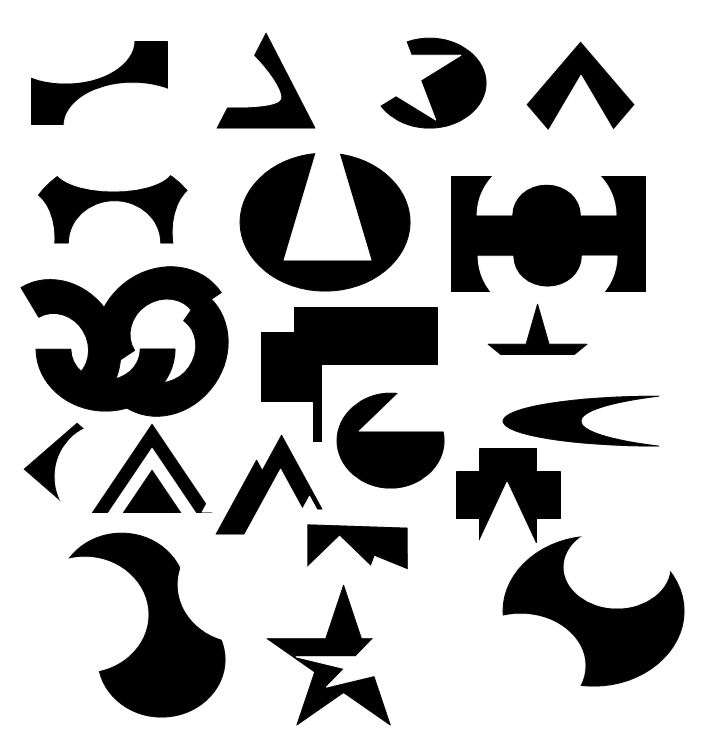
I engaged in two more graphic design projects.  In the first one, I used simple shapes to overlap each other to create my own shapes that may now be used for other projects, such as logos or aesthetic appeal.  This project comes from the Design Basics Index, page 131 ("Shape-Building Practice").  There was no particular shape I was trying to develop, so they all seem a bit random.  I had the most fun with circles, triangles, and stars.  I completed these objects in PowerPoint, as I needed vector-based program to create these images (as per the instructions).  The benefit of this is that I can resize these images however I like and not lose pixel resolution.  Also, I found it easiest to "group" the sub-images together so that I could reposition them on the page without distorting/altering them.


Next, I completed the "Word Portraits" exercise on page 241 of the Design Basics Index.  For this task, I chose a dozen fonts and picked words that I could easily associate with them, along with one word that seemed to be in contradiction to the font.  This was a worthwhile task because it required me to run through my list of available fonts; next time I need a particular font, I know just where to find it.  Interestingly, for some fonts I chose the font first and then decided what words would with it, but for others I thought of a word/emotion first and then attempted to find a matching font.  The latter is clearly the more feasible situation for conducting this exercise in a real-world scenario.  I used the "Snipping Tool" with Windows 7 to upload a screenshot of my MS Word document, so if the words are difficult to read, just click on the embedded image and a full size image will appear.  It would be nice if I could upload the original MS Word document to this blog as a file attachment; anyone know how to go about that?

Wednesday, July 4, 2012

Graphic Design

Before engaging in my own practice graphic design projects, I sought out a website with poor graphic design so that I would have an idea of what the fatal errors (or "sins") discussed by Golombisky & Hagen look like.  I didn't have to search long.  Most websites I visited had at least two no-no's somewhere on the site, but some were quite horrendous.  One such site is for Video Sonic, which specializes in video and audio equipment repair (although I did have to stare at their homepage for quite a while to figure that out, let alone what the same of their company even is).

Where to begin on this?  First, the company's name is so tiny in the corner that, like I said, I couldn't figure out who they were at all.  The next thing that jumps out at you is the enormous amount of negative space dead center in the screen.  I waited for a while thinking that the page just hadn't fully loaded.  If they're wondering what to put there, I would suggest to relocate their company name to that spot.  Next, the navigation is very sporadic (and some of those boxes aren't links at all).  The next "sin" is that they centered everything, which gives the page a horrible look.  Some things can be centered, but the navigation should be a list and there shouldn't be one credit card logo hanging out below the rest.  While we're on that, why is the credit card info smack between the links to their individual locations' websites? - And if you're now thinking that the individual websites look better than this simple portal, you're quite mistaken.  Next issue: they've decided to go with dark colors for the foreground and the background, which means you need to strain to see the words.  Of course those ugly white boxes randomly spewed on the page do assist slightly.  The one set of boxes that do pop out are their coupons, which they have decided to paint the brightest colors they could find, leaving the color scheme very unbalanced.  They also need to fix some of their links; if you click the chatroom, you'll be the only one there.  I could probably go on for a while, so I'll call it quits here.


Then I began some practice graphics of my own.  Both are activities from Krause's Design Basics Index.  The first is a Mini Compositions exercise which was relaxing to play around with.  Basically, each rectangle is supposed to include geometric shapes.  Some I used the computer to draw straight lines and others I free-drew (I'm sure you can't tell which ones I carefully drew without computer aid...).


The second activity was to develop three ads displaying a form of repetition in each.  Each ad has some good qualities, and I admit that I can see areas in each that can use improvement as well.  I won't bias you, though, so I'll let you comment on good/bad qualities at will.


Please leave comments on what you think about my first art since high school.  Like I stated above, there are pros and cons with each one; feel free to point out areas that are in need of improvement!

Friday, June 29, 2012

Multimedia Montage Project Communities

In preparation for developing a Multimedia Montage Project, I joined a few communities on Thinkfinity.  Since the project is only in the initial phase, I'm not quite sure where it needs to go - so I figured joined a few different sites with different foci.  "Online Tools for Educators" has a lot of different ideas for incorporating technology in the classroom, so I think it will be one of the biggest contributors to my project's success.  I also joined "Mobile Learning", which has members submit ideas regarding how to best incorporate mobile devices into the classroom.  I think mobile phones being used in the classroom is the next natural step, so I am sure to learn invaluable skills through this group, regardless of whether it is useful in my current academic endeavors.  I have no doubt that all students within the next several years will have access to smart phones, or at least a hand-held device with similar capabilities.  And in the meantime, there's no reason why students with these devices should be banned from making use of them simply because "not all students have them".

Rune Pettersson's "Visual Literacy and Message Design" explains key aspects of utilization of pictures and images, so I was hoping to find a great group that focuses on this topic ... so far I've found nothing noteworthy.  --Any leads would be greatly appreciated!--  Blending auditory and visual stimulation (along with others, if possible) at the same time is key to teaching/learning since it increases greatly the amount of information sent to long term memory.  Embedding images strategically around text will also encourage exploration of digital documents such as a website, so people will want to experience more of the information presented.

Lastly, I found an "All About Science" group that may not assist me at all during the course of this project, but you can never be exposed to too much science (I suppose the Hulk may be one exception).  With my background in biology, the information posted to this site is already posing to be of interest to me, and I am sure I can make some valuable contributions of my own as well.

If anyone has any other great Communities to join, within or outside of Thinkfinity, please share!

Sunday, April 22, 2012

Google Docs

Google Docs is an amazing resource for collaboratively developing documents.  Although, it's a great site to use on your own as well.  It used to be that if I wanted to open a document in more than one location, I needed to email it to myself.  This isn't the worst approach, but you can't edit it without having to delete the old one and uploading the new one.  You also get two versions of the document in your mailbox if you save all of your sent mail, which can eat away at your quote (which I suppose doesn't matter as much now that quotas are roughly the size of one cazillion times my the hard drive of my family's first computer).  I did solve this my saving files to my drafts instead, but they make it really easy to accidentally delete drafts.  Anyway, saving files to Google Docs allows me to open and edit one file in any location with an internet connection (which is very important at my work, in which computers are not networked, yet I work on about 3 every day).

Aside from selfish reasons, Google Docs is great to be used by collaboratively-working teachers.  In my last school, all curricula, tests, and even many PowerPoints were collaboratively developed.  We held several professional development meetings in which we worked on these documents together.  During the first, we all simply shouted out changes we wanted done to each document as the designee with the mouse and keyboard scrambled to keep up.  After that disaster, we all began to use Google Docs, which allowed us to all work on the same document at the same time.  This sounds like it would be a disaster as well, but since we all worked in a different color (assigned by out Google Overlords) we were able to productive and work off of each other's contributions.

After seeing how effectively teachers could develop documents together, I began reading about suggestions for students to use Google Docs in the classroom.  Google itself has many ideas about how this can be accomplished as well.  For one, students can develop journals that include timestamped entries that can be seen by either the entire class or just the teacher.  Teachers (and perhaps other students) can leave responses in the comments section.  Developing this type of journal format may be easier than requiring students to develop blogs, depending on the specific type of assignment (some parents may find this more comforting too, as it has the "feel" of more security than a blog).  Another suggestion is to have students work on documents together in class.  Many times I have given 2-4 students a computer task but only one computer to get the job done (which means that one person ends up working while the others end up texting).  However, given that there are enough laptops or classroom computers to go around, students can use Google Docs to develop assignments together at the same time.  What I really like about this idea is that I am able to see what each student contributed to the document so I can make sure everyone is putting in their share of the work.

Please share if you have any other valuable uses for Google Docs!